Get started
Sign in, add your first website, and see your first visitors.
Three steps: sign in, add your site, paste one line of code.
1. Sign in with a passkey
Go to app.ztas.io and choose Continue with passkey. ZTA uses passkeys, so there is no password to create or remember. Your browser or phone (Face ID, Touch ID, Windows Hello, or a security key) confirms it’s you.
New here? Create an account on the same screen. It uses the same passkey flow and starts you on the free plan with unlimited sites.
2. Add your website
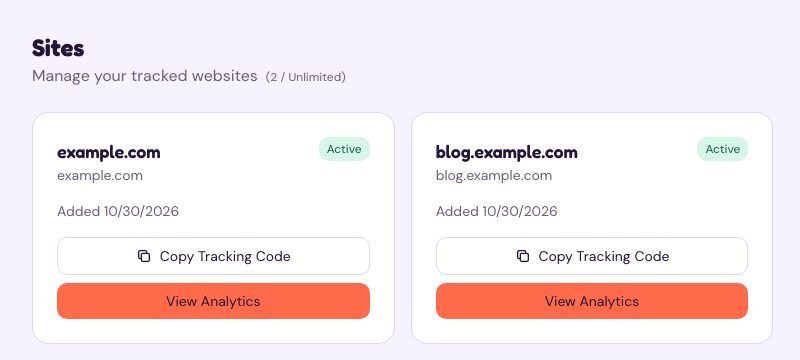
- In the sidebar, open Sites.
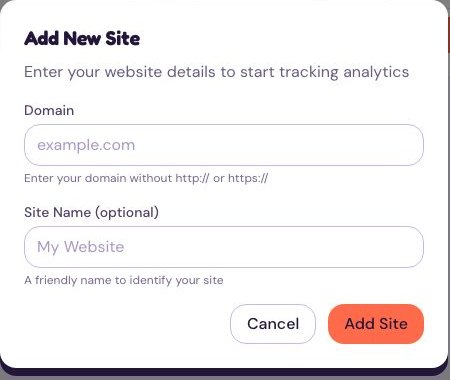
- Choose Add Site.
- Enter the Domain without
http://orhttps://(for exampleexample.com). - Optionally give it a Site Name so you can tell sites apart.
- Choose Add Site.
3. Install the tracking code
On the Sites page, choose Copy Tracking Code on your site’s card. The button changes to Copied!. Paste the code into your site’s HTML, just before </head>, on every page.
For WordPress, Next.js, Hugo and other setups, follow the installation guide.
4. Check it’s working
Visit your website, then open Real-time in the sidebar and choose your site. Your visit should appear within a few seconds. Then head to Read your dashboard.